Spotify Overview
Spotify Integration
Spotify is now supported as a music provider on our platform, allowing you to play music from your own Spotify account directly through the bot. If you’re not familiar with it, Spotify is a leading music streaming service with millions of tracks and playlists, and is widely used by streamers for curated or DMCA-free music.
Setting up Spotify involves connecting your own Spotify Developer Application, which enables the bot to securely play songs on your behalf. This guide walks you through the process step-by-step.
Accessing the Spotify Setup
- Open your Dashboard.
- Navigate to the Music tab.
- Click on Settings, then select Providers.
You’ll see two available music providers listed:
- YouTube
- Spotify
To proceed with Spotify integration, you’ll need to configure a developer app with Spotify to generate the required API credentials.
Creating a Spotify Developer App
To securely link your Spotify account, you must provide two credentials:
Spotify Client IDSpotify Client Secret
These values are used to authenticate the bot with your Spotify developer app.
To obtain these credentials:
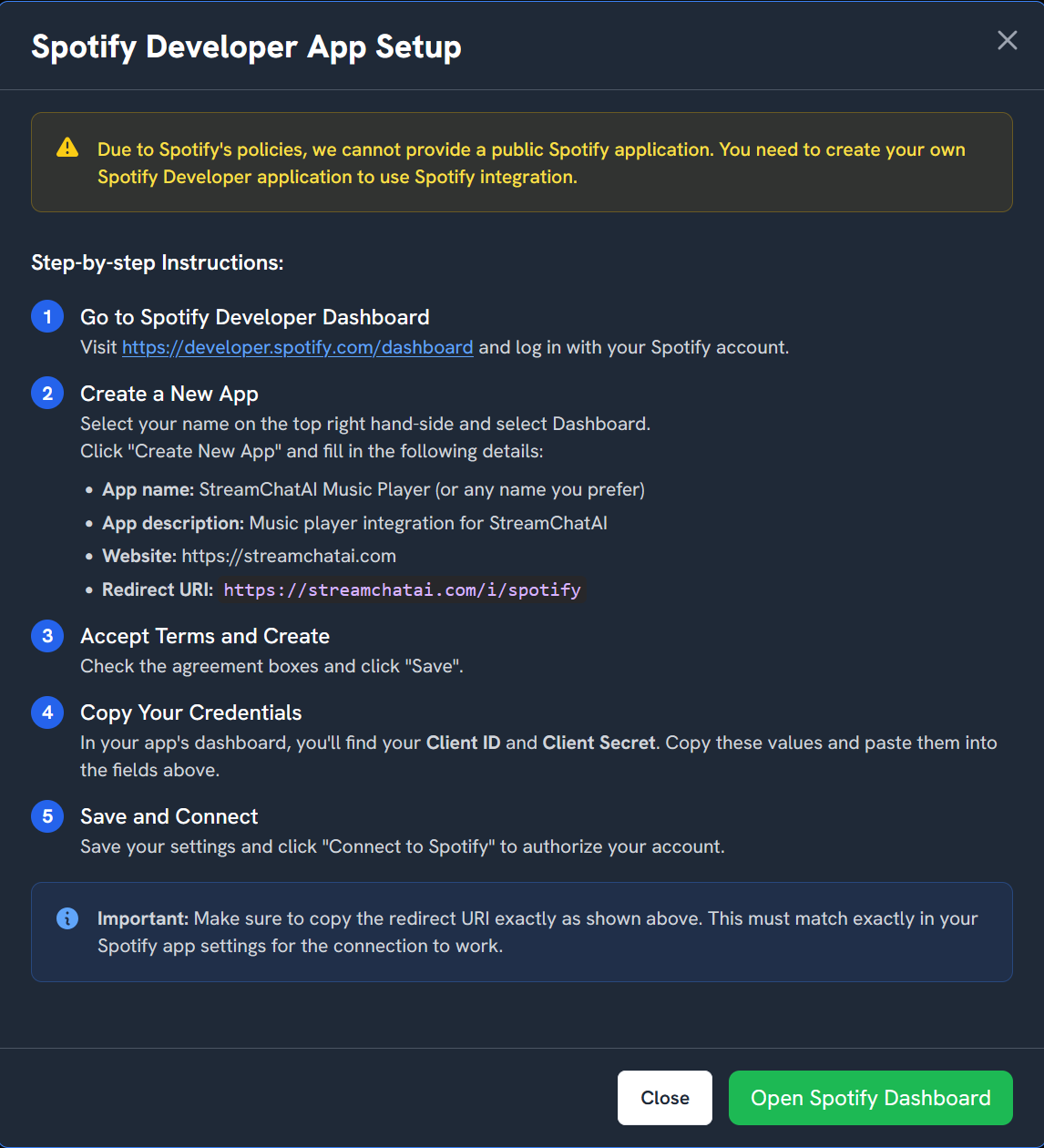
- Click the Setup Help button located next to the Spotify fields.
This opens a pop-up window with a detailed, step-by-step guide on how to create a Spotify developer application.
-
Follow the on-screen instructions carefully. You’ll be guided through creating a new app via the official Spotify Developer Dashboard.
-
Once your app is created, copy the generated Client ID and Client Secret from the Spotify dashboard.
-
Return to your dashboard and paste the credentials into the respective fields.
-
Click Save Settings to store the information.
Connecting Your Spotify Account
Once your credentials have been saved:
- A new button labelled Connect to Spotify will appear.
- Click this button to authorise the bot to access your Spotify account using the developer credentials.
- After authorisation, return to Music > Settings > Providers, where you should now see Spotify: Connected.
Playback, Playlists, and Defaults
-
Once connected, you can use the Spotify player in the same way as the YouTube player. If you’re unfamiliar with the YouTube player setup, refer to the Music Settings Guide.
-
If your music queue is empty, the player will automatically fall back to a default DMCA-free playlist — perfect for ensuring uninterrupted background music during your stream.
-
Whenever you make changes to playlists or provider settings, always remember to click Save Settings to apply and retain the updates.
Troubleshooting
If you encounter any issues during setup:
- Double-check your Client ID and Secret were copied correctly.
- Make sure your Spotify developer app has the correct permissions set.
- Try reconnecting your Spotify account if the connection status doesn’t update.
- If the issue persists, refer to the Diagnostics section or contact support via the Help Centre.
Summary
Setting up Spotify adds powerful and flexible music playback to your stream. While it requires a one-time developer configuration, the result is a reliable and DMCA-safe music system tailored to your content. For any further assistance, consult our Spotify Tutorial or watch the video below: