

Poll Commands
Introduction
Poll commands allow you to engage your audience through interactive questions that display live on your stream. These can be used to collect feedback, make decisions, or simply entertain your viewers during downtime or gameplay.
Understanding Poll Commands
Before creating your first poll, it’s useful to understand the value of real-time audience participation:
- Letting chat decide your next game or action
- Collecting feedback on stream quality or content
- Running fun trivia or “this or that” votes
- Involving viewers in challenge selection
- Increasing engagement during breaks or transitions
Setting Up Poll Commands
Initial Command Creation:
- Go to your dashboard as usual
- Navigate to the Commands tab
- Click the green “Add New Command” button
- Select ‘Poll’ from the options
Naming Your Poll Command:
- Pick clear and descriptive names that reflect the poll topic
- Examples:
!votefor generic use!choosegameto let viewers pick the next game!snackpollfor a fun food debate!pollfor another default command
- Keep in mind:
- Poll commands must start with an exclamation mark (!)
- Choose short and easy-to-type names
- Avoid confusing similar names
Permission Level Configuration:
-
Decide who can trigger polls:
- Anyone: Great for community-driven moments
- Followers: Adds minimal gatekeeping
- VIPs: Use for trusted polling sessions
- Subscribers: Encourage support through interaction
- Moderators: Reserve polls for key moments
- Broadcasters: Full control for hosts only
-
Consider:
- Is the poll casual or important?
- Should it happen frequently or occasionally?
- Can it be misused?
- Is it tied to serious decision-making?
You can add a description to distinguish between different poll commands in your collection.
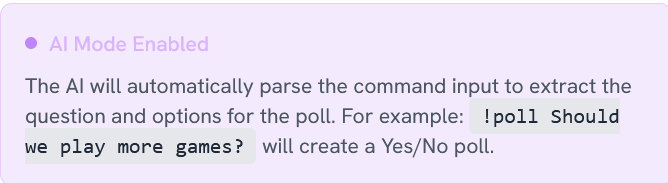
You can also utilize AI assistance to generate poll content, though this will consume your AI Message tokens with each use. Ticking this will show this:
Poll Setup and Configuration:
- Input your poll question
- Add up to 10 answer options
- Set Time Limit (between 30 seconds and 300 seconds)
- Enable or disable Channel Points Voting
- Choose a cooldown to stop polls being spammed
Summary
Poll commands are a powerful way to let your viewers shape the direction of your stream. Whether you’re gathering input, creating interactive segments, or just having fun, polls boost chat participation and viewer investment. With customisation options and full OBS compatibility, setting up interactive voting has never been easier.
Video Tutorial
For more information on how to create poll commands, please refer to the Poll Commands Tutorial or watch the video below: